Schedule Undo
Every schedule change shows you a live preview first. Undo it instantly or accept it with confidence. Your original plan is always one tap away.
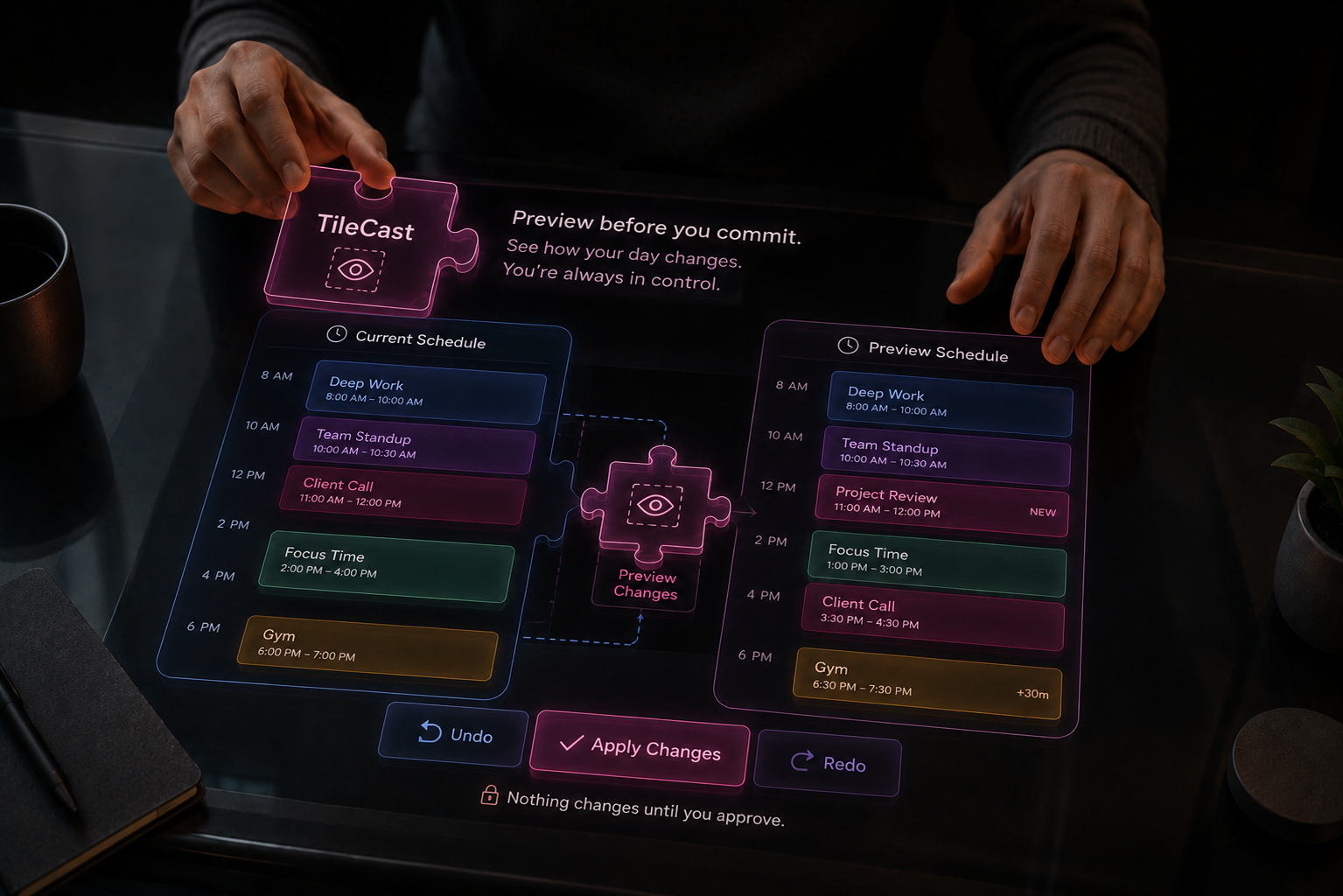
Changing your schedule feels risky. Move one task and you're not sure what else shifts. Accept a suggestion and wonder if it was the right call. Schedule Undo gives you a safe zone between intention and commitment.
Every change in Tiler, whether you typed a request, accepted a suggestion, or moved a tile, first appears as a preview. Your live schedule stays untouched until you say so.
How Schedule Undo works
Make a change
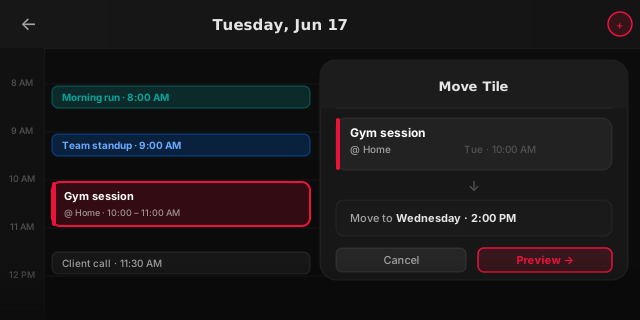
Move a tile, add a new task, or accept an AI suggestion. Instead of saving immediately, Tiler drops the change into preview. It shows with a dashed border and a PREVIEW label so you know it has not landed yet.
See exactly what changed
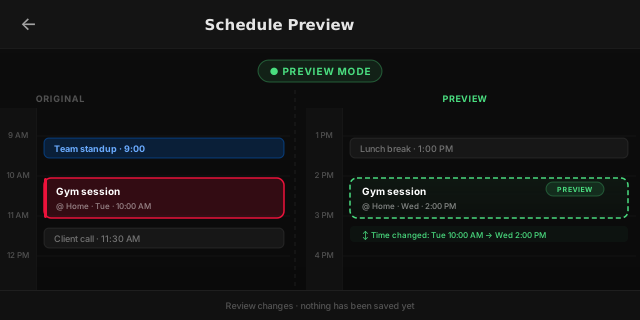
The preview tile shows the updated name, location, time, and date alongside what was there before. You see the full picture at a glance without having to mentally track what moved.
Tap Undo or Accept
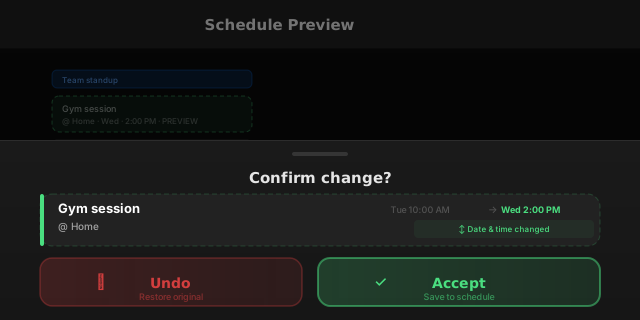
Not happy with the result? Tap Undo and your original schedule snaps back instantly. Happy with it? Tap Accept and it locks in. Either way, you made the call.
Why this matters
Most calendar apps apply changes immediately and ask you to undo after the fact, by which point notifications have fired, sync has happened, and the damage is done. Schedule Undo flips this. The default is preview, not save.
Whether you're rescheduling a workout, shifting a meeting, or taking on a task a colleague sent you, the preview step takes less than a second and can save you from a call you'd regret.
Change your mind before it counts.
Ready to build your timeline?
Five minutes of setup. A schedule that actually works.
Get Started FreeAvailable on iOS and Android. Free to start.


'%3e%3cpath%20d='M6.13394%209.7H8.13394L8.93394%206.5H6.13394V4.9C6.13394%204.076%206.13394%203.3%207.73394%203.3H8.93394V0.612C8.67314%200.5776%207.68834%200.5%206.64834%200.5C4.47634%200.5%202.93394%201.8256%202.93394%204.26V6.5H0.533936V9.7H2.93394V16.5H6.13394V9.7Z'%20fill='%23B3B3B3'/%3e%3c/g%3e%3cdefs%3e%3cclipPath%20id='clip0_2046_4371'%3e%3crect%20width='8.8'%20height='16'%20fill='white'%20transform='translate(0.533447%200.5)'/%3e%3c/clipPath%3e%3c/defs%3e%3c/svg%3e)

'%3e%3cpath%20d='M8.36718%202.5C10.2691%202.5%2010.5064%202.507%2011.2526%202.542C11.9981%202.577%2012.5056%202.6939%2012.9522%202.8675C13.4142%203.0453%2013.8034%203.2861%2014.1926%203.6746C14.5485%204.02453%2014.824%204.44781%2014.9997%204.915C15.1726%205.3609%2015.2902%205.86909%2015.3252%206.61459C15.3581%207.36079%2015.3672%207.59809%2015.3672%209.50001C15.3672%2011.4019%2015.3602%2011.6392%2015.3252%2012.3854C15.2902%2013.1309%2015.1726%2013.6384%2014.9997%2014.085C14.8245%2014.5525%2014.5489%2014.9758%2014.1926%2015.3254C13.8426%2015.6812%2013.4193%2015.9566%2012.9522%2016.1325C12.5063%2016.3054%2011.9981%2016.423%2011.2526%2016.458C10.5064%2016.4909%2010.2691%2016.5%208.36718%2016.5C6.46528%2016.5%206.22798%2016.493%205.48178%2016.458C4.73628%2016.423%204.22879%2016.3054%203.78219%2016.1325C3.31482%2015.9572%202.89146%2015.6816%202.54179%2015.3254C2.18577%2014.9755%201.91034%2014.5523%201.73469%2014.085C1.56109%2013.6391%201.44419%2013.1309%201.40919%2012.3854C1.37629%2011.6392%201.36719%2011.4019%201.36719%209.50001C1.36719%207.59809%201.37419%207.36079%201.40919%206.61459C1.44419%205.86839%201.56109%205.3616%201.73469%204.915C1.90985%204.44752%202.18535%204.02412%202.54179%203.6746C2.89156%203.31846%203.31489%203.04301%203.78219%202.8675C4.22879%202.6939%204.73558%202.577%205.48178%202.542C6.22798%202.5091%206.46528%202.5%208.36718%202.5ZM8.36718%205.99999C7.43893%205.99999%206.54869%206.36875%205.89231%207.02512C5.23593%207.6815%204.86718%208.57174%204.86718%209.50001C4.86718%2010.4283%205.23593%2011.3185%205.89231%2011.9749C6.54869%2012.6312%207.43893%2013%208.36718%2013C9.29545%2013%2010.1857%2012.6312%2010.842%2011.9749C11.4984%2011.3185%2011.8672%2010.4283%2011.8672%209.50001C11.8672%208.57174%2011.4984%207.6815%2010.842%207.02512C10.1857%206.36875%209.29545%205.99999%208.36718%205.99999ZM12.9172%205.82499C12.9172%205.59293%2012.825%205.37037%2012.6609%205.20628C12.4968%205.04219%2012.2742%204.95%2012.0422%204.95C11.8101%204.95%2011.5875%205.04219%2011.4234%205.20628C11.2594%205.37037%2011.1672%205.59293%2011.1672%205.82499C11.1672%206.05706%2011.2594%206.27962%2011.4234%206.44372C11.5875%206.60781%2011.8101%206.69999%2012.0422%206.69999C12.2742%206.69999%2012.4968%206.60781%2012.6609%206.44372C12.825%206.27962%2012.9172%206.05706%2012.9172%205.82499ZM8.36718%207.39999C8.9241%207.39999%209.45827%207.62124%209.85209%208.01507C10.2459%208.4089%2010.4672%208.94304%2010.4672%209.50001C10.4672%2010.0569%2010.2459%2010.5911%209.85209%2010.9849C9.45827%2011.3787%208.9241%2011.6%208.36718%2011.6C7.81023%2011.6%207.27609%2011.3787%206.88226%2010.9849C6.48843%2010.5911%206.26718%2010.0569%206.26718%209.50001C6.26718%208.94304%206.48843%208.4089%206.88226%208.01507C7.27609%207.62124%207.81023%207.39999%208.36718%207.39999Z'%20fill='%23B3B3B3'/%3e%3c/g%3e%3cdefs%3e%3cclipPath%20id='clip0_2046_4377'%3e%3crect%20width='16'%20height='16'%20fill='white'%20transform='translate(0%200.5)'/%3e%3c/clipPath%3e%3c/defs%3e%3c/svg%3e)
'%3e%3cpath%20fill-rule='evenodd'%20clip-rule='evenodd'%20d='M14.8049%203.82775C15.1086%203.52401%2015.1086%203.03155%2014.8049%202.7278C14.5012%202.42407%2014.0087%202.42407%2013.705%202.7278L9.08116%207.35161L5.75649%202.81784C5.60997%202.61804%205.37703%202.5%205.12927%202.5H1.81049C1.5174%202.5%201.24919%202.66476%201.11671%202.92621C0.984228%203.18765%201.00996%203.50137%201.18328%203.73772L6.05357%2010.3792L1.26052%2015.1723C0.956781%2015.476%200.956781%2015.9685%201.26052%2016.2722C1.56426%2016.5759%202.05672%2016.5759%202.36047%2016.2722L6.98427%2011.6484L10.309%2016.1822C10.4555%2016.3819%2010.6884%2016.5%2010.9362%2016.5H14.2549C14.548%2016.5%2014.8163%2016.3353%2014.9487%2016.0738C15.0812%2015.8124%2015.0555%2015.4986%2014.8821%2015.2622L10.0118%208.6208L14.8049%203.82775ZM8.32073%208.94506C8.34476%208.98511%208.37268%209.02338%208.40457%209.05947L12.7201%2014.9444H11.3303L3.34534%204.05556H4.73514L8.32073%208.94506Z'%20fill='%23B3B3B3'/%3e%3c/g%3e%3cdefs%3e%3cclipPath%20id='clip0_2046_4380'%3e%3crect%20width='16'%20height='16'%20fill='white'%20transform='translate(0%200.5)'/%3e%3c/clipPath%3e%3c/defs%3e%3c/svg%3e)